Weekly cybersecurity tips for families and small businesses — written in plain English. No jargon, no fear-mongering. Just practical steps to keep your people and data safe.
🛡️ Protecting Smart Home Devices From Hackers: 2026 Guide — Today's Cyber Briefing
Table of Contents
- Step 1: How to Secure Home WiFi Network as Your First Line of Defense
- Step 2: How to Set Up a Guest Network for IoT Devices
- Step 3: Harden Every Device With MFA and Passcode Lockouts
- Step 4: Spot the Signs Your Smart Home Has Been Hacked
- Step 5: Configure an IoT Firewall and Run Vulnerability Scans
- Common Mistakes That Leave Smart Home Devices Exposed
- Frequently Asked Questions
Last Updated: September 24, 2026
Step 1: How to Secure Home WiFi Network as Your First Line of Defense
Your router is the front door to every smart device you own. If a hacker gets past it, they can reach your cameras, locks, and speakers without touching them directly. That is why protecting smart home devices from hackers starts with the network itself. This guide from ArkCybr walks through the exact steps, in order.
- Log in to your router’s admin interface
- Change the default credentials
- Install the latest firmware update
- Turn on WPA3 encryption
- Disable remote access
Change Default Credentials and Update Firmware
Default passwords are a gift to attackers. Many routers ship with “admin” as both the username and password, and those combinations are published online. The CISA guidance on securing home networks recommends changing them before you connect anything else.
- Change the admin password to something long and unique
- Store it in a password manager, not a notebook
- Turn on automatic firmware updates if your router offers them
- Check for manual updates every few months if it does not
Turn On WPA3 Encryption and Disable Remote Access
Encryption scrambles the data moving between your devices and the router. WPA3 is the newest standard and blocks the older attack methods that cracked WPA2. If your router supports it, switch it on. Remote access lets you manage your router from outside the home, but it also opens a path for anyone who guesses your login. Unless you truly need it, turn it off.
Leaving remote access on with a weak admin password is one of the fastest ways to get hacked. Attackers scan the internet for exposed admin interfaces and try common passwords automatically.
Step 2: How to Set Up a Guest Network for IoT Devices
How to set up a guest network for IoT devices: create a separate WiFi network in your router settings, give it a different name and password, and connect only your smart devices to it. This keeps your laptops and phones on a network the smart gadgets cannot reach.
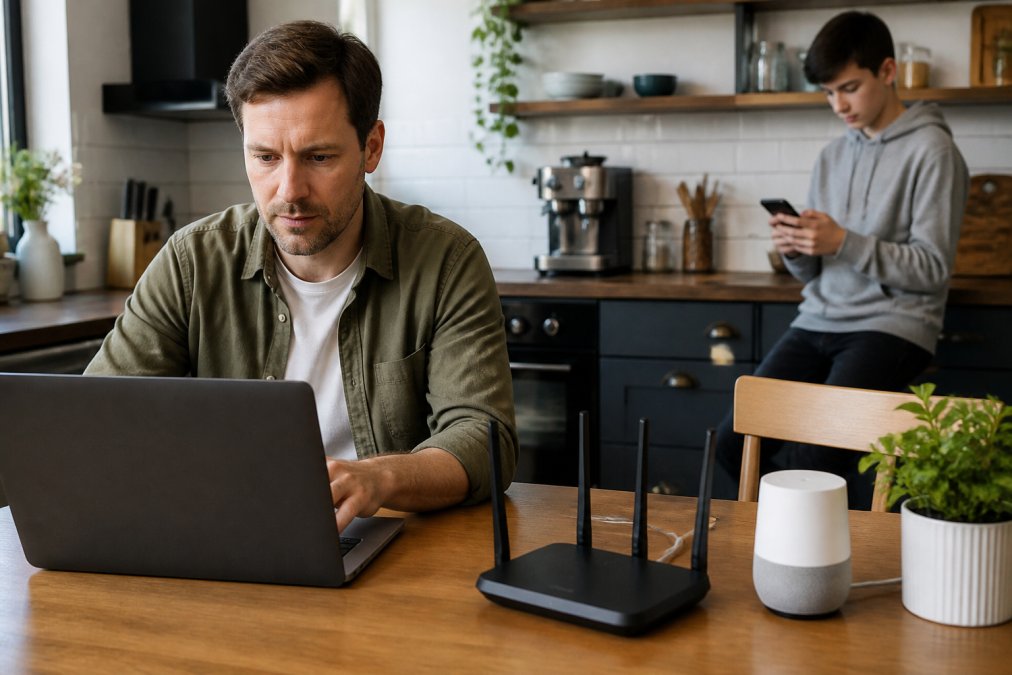
The steps are simple:
- Open your router’s admin interface
- Find the guest network option
- Give it a distinct SSID and a strong password
- Set it to isolate clients from the main network
- Reconnect every smart device to the guest network
Why Network Segmentation Stops Hackers From Moving Sideways
Network segmentation splits your home network into separate zones. If a hacker cracks your smart bulb, they are stuck on the guest network and cannot hop to your laptop, work files, or bank app, the same idea businesses use, scaled down for a connected home.
Name your guest network something that does not reveal the router brand. “Linksys-Guest” tells an attacker exactly which flaws to try. “Bluebird-Guest” tells them nothing.
Step 3: Harden Every Device With MFA and Passcode Lockouts
Two-factor authentication (MFA) adds a second check beyond your password. Even if someone steals your login, they still need the code sent to your phone. Turn it on for every smart device app that supports it. Passcode lockouts matter too: a lockout shuts down login attempts after a few wrong tries, stopping automated guessing.
- Use MFA on camera, lock, and thermostat apps
- Set a lockout after three to five failed attempts
- Use a password manager to keep every device password unique
- Never reuse your email password on a smart device
Step 4: Spot the Signs Your Smart Home Has Been Hacked
Signs your smart home has been hacked usually show up as odd behavior, not alarms. A camera that pans on its own, a speaker that plays audio you did not request, or a router that suddenly slows to a crawl are all red flags. But spotting the signs is only half the job. What you do next determines whether the attacker stays locked out or comes back.
Warning Signs to Watch For
- Devices turning on or off without a command
- Unfamiliar apps or users in your device account
- Strange login alerts from your smart home apps
- Slow network traffic when nothing is running
- Settings you did not change
- Camera feeds showing a different view or going offline unexpectedly
- Unusual sounds from speakers or doorbells
- New devices appearing in your router’s connected device list
If you spot any of these, act fast.
Immediate Recovery Steps (First 30 Minutes)
- Disconnect the affected device from the network. Unplug it or turn off its Wi-Fi to stop the attacker using it as a pivot point.
- Change your Wi-Fi password. Do this from a trusted device, using a long, unique passphrase. This kicks all devices off and forces reconnection.
- Change the admin password on your router. If the attacker had router access, they may have created a backdoor.
- Check your router’s connected device list. Write down MAC addresses of anything you do not recognize.
- Disable remote access on your router if it was on. Attackers often use it to maintain access.
Deeper Cleanup (First 24 Hours)
- Factory reset the compromised device. A password change may not remove malware. Follow the manufacturer’s full reset instructions, then update firmware before reconnecting.
- Update firmware on all devices. Patching closes the known flaws attackers exploit.
- Review account activity. Check your smart home app for unfamiliar logins, new users, or changed settings, and remove anything you did not authorize.
- Change passwords for all smart device accounts. Use a password manager to generate unique passwords; do not reuse your email password.
- Enable MFA on every account that supports it. This is your best defense against repeat attempts.
- Check your email and other accounts. If you reused passwords, attackers may try them elsewhere.
When to Seek Professional Help
If you see signs of a broader compromise, unauthorized bank transactions, strange emails from your account, or persistent unknown devices, contact a professional. In the US, report identity theft and fraud to the FTC at IdentityTheft.gov, and see the CISA website for cybersecurity incident reporting. If you suspect a crime, contact local law enforcement.
Do not reconnect a compromised device until you have reset it and updated its firmware. Reconnecting too soon can give the attacker immediate access again.
Preventing Re-Infection
After cleanup, revisit your defenses:
- Put IoT devices on a separate network (see Step 2).
- Turn on automatic firmware updates where available.
- Use MFA on all smart device apps.
- Run a vulnerability scan (see Step 5) to confirm no open ports remain.
- Monitor your router’s device list monthly for unknowns.
Attackers often return if the original vulnerability is not closed.
Most guides tell you how to prevent a hack. This section tells you what to do if it happens. Acting quickly and thoroughly can turn a breach into a one-time incident instead of an ongoing problem.
Step 5: Configure an IoT Firewall and Run Vulnerability Scans
Most home routers do not block traffic between devices by default, so a compromised smart bulb can talk directly to your laptop. An IoT firewall fixes that by limiting what each device can reach. Some newer routers include one built in; others let you add rules manually. Either way, the goal is to isolate IoT devices so a single breach cannot spread.
Router-Level IoT Isolation: Concrete Settings to Look For
Menu names vary by brand, but most routers expose the same controls. Log in to your router’s admin interface and look for these settings:
- Client isolation (sometimes called AP isolation or station isolation): Prevents wireless devices on the same network from talking to each other. Turn it on for your guest/IoT network.
- VLAN or network segmentation: If your router supports VLANs, assign IoT devices to a separate VLAN from your computers and phones. Consumer routers often label this “IoT network” or “device isolation.”
- Firewall rules (outbound and inbound): Look for “Firewall,” “Access Control,” or “Traffic Rules.” Block the IoT network from initiating connections to your main LAN, and allow only the outbound ports a device needs.
- UPnP (Universal Plug and Play): Turn this off. UPnP lets devices open router ports automatically, a common attack path.
- mDNS and broadcast reflection: If your IoT devices do not need to discover devices on your main network, disable mDNS reflection to reduce cross-network chatter.
Name your IoT network something neutral like “Bluebird-IoT” rather than “Linksys-Guest.” The name should not reveal the router brand or invite targeted attacks.
Vulnerability Scanning Tools for Non-Technical Users
You do not need to be a network engineer to scan your home network. A few free or low-cost tools can map your devices and flag open ports or outdated firmware:
-
Fing (mobile app): Scans your network and lists every connected device, its IP address, and often its manufacturer, alerting you when a new device joins.
-
Nmap (desktop, free): A more advanced scanner. Running
nmap -sV 192.168.1.0/24(replace with your subnet) lists devices and the services they expose. Investigate any unexpected open port. -
Shodan (web-based): Use it to check whether your home IP address exposes any services. If it does, your router or a device is misconfigured.
-
Router built-in scanners: Some routers (Asus, Netgear, TP-Link) include a “Network Map” or “Security” tab showing connected devices and known vulnerabilities.
-
Unknown devices on your network
-
Open ports that should be closed (especially 22, 23, 80, 443, 3389)
-
Devices with outdated firmware (cross-check with the manufacturer’s site)
Do not scan networks you do not own. Scanning your own home network is fine; scanning a neighbor’s or a public network without permission may violate laws.
Putting It Together: A Simple IoT Firewall Policy
- Allow IoT devices outbound to the internet only on the ports they need (check the device manual or vendor support page).
- Block all inbound connections to IoT devices from the internet.
- Block IoT devices from initiating connections to your main LAN (laptops, phones, NAS).
- Allow your main LAN to initiate connections to IoT devices only if you need to manage them locally (for example, to view a camera feed).
The single biggest gap in most home setups is the lack of any firewall rules between IoT devices and the rest of the network. Adding them takes minutes and closes the path attackers use most.
For families and small teams who want this handled without the technical lift, ArkCybr offers background-running protections plus training so you can spot threats yourself.
Common Mistakes That Leave Smart Home Devices Exposed
The same errors show up again and again. Here is what to avoid.
| Mistake | Why It Hurts | Fix |
|---|---|---|
| Keeping default credentials | Published passwords get tried first | Change every admin login |
| Skipping firmware updates | Old flaws stay open | Turn on auto-updates |
| One network for everything | Hackers move sideways | Use a guest network |
| No MFA on device apps | Stolen passwords work alone | Turn on MFA everywhere |
| Ignoring odd device behavior | Early warning signs get missed | Check devices monthly |
Frequently Asked Questions
How can you tell if your home Wi-Fi is hacked?
Watch for devices you don’t recognize in your router’s admin interface, sudden slowdowns, or settings that change without you touching them. A smart speaker that responds to commands nobody gave, or a camera that moves on its own, also points to an intruder. Check your router’s connected device list weekly. If you spot an unknown device, change your Wi-Fi password, update firmware, and reboot the router immediately. Strong smart home security starts with noticing small changes early.
Can smart devices be hacked even with a strong password?
Yes. Weak spots usually come from outdated firmware, default credentials, or unpatched vulnerabilities, not your Wi-Fi password alone. A robot vacuum or smart bulb with old firmware can become an entry point. Turn on automatic firmware updates, change every default login, and enable two-factor authentication where the app supports it. Segmenting IoT devices onto a guest network limits what a hacker can reach even if one device is compromised.
Do I need a separate network for my smart home devices?
A separate guest network for IoT devices is one of the most effective steps you can take. If a hacker compromises your smart TV, they stay trapped on that guest network instead of reaching your laptop, phone, or work files. Most modern routers support a guest SSID in the admin interface. Set it up in under ten minutes, connect every smart device to it, and keep your main network for computers and phones.
What are the most common vulnerabilities in smart home devices?
Default credentials, unpatched firmware, and open remote access top the list. Many devices ship with admin/admin logins that owners never change. Others run old software with known flaws. Some expose webcams or microphones through cloud services with weak access controls. Fixes are simple: change every default password, enable automatic security patches, disable remote viewing when you don’t need it, and check for firmware updates monthly.
Smart homes are convenient, but they add doors you never had before. Closing those doors takes a weekend of work: secure the router, segment the network, turn on MFA, and watch for odd behavior. ArkCybr helps families and small teams handle this without needing to become IT experts, with background protections, one-on-one consulting, and courses that teach you to recognize threats. Get started with ArkCybr and secure your home network with confidence.
ArkCybr
Weekly cybersecurity tips for families and small businesses — written in plain English. No jargon, no fear-mongering. Just practical steps to keep your people and data safe.

Last Updated: October 30, 2026 Quick Summary Full enterprise security is cybersecurity overkill for most small teams, but a basic, prioritized baseline is not. Six controls stop the most common attacks: multi-factor authentication, a password manager, automatic patching, tested backups, phishing training, and a written response plan. Compare the annual cost of that baseline to the largest loss your team could survive. Most small business attacks are automated scans, not personal targeting, so...

Last Updated: October 26, 2026 Quick Summary Managed security service provider benefits include 24/7 threat monitoring, access to specialized cybersecurity expertise, and cost-effective security without the expense of hiring and maintaining an in-house team. MSSPs deliver enterprise-grade protection at a fraction of what small businesses would spend building their own security department. MSSPs operate security operations centers staffed with specialists who monitor networks continuously,...

Last Updated: October 23, 2026 Quick Summary Cybersecurity worth the cost for a small business means protection costs less than the likely loss from a breach, downtime, and lost trust. Estimate the realistic cost of one bad incident, multiply by a rough annual likelihood, and compare that to what you plan to spend. If a breach would plausibly cost more than a year of your security budget, the budget is defensible. Fund identity, endpoint protection, and backup to full coverage before adding a...